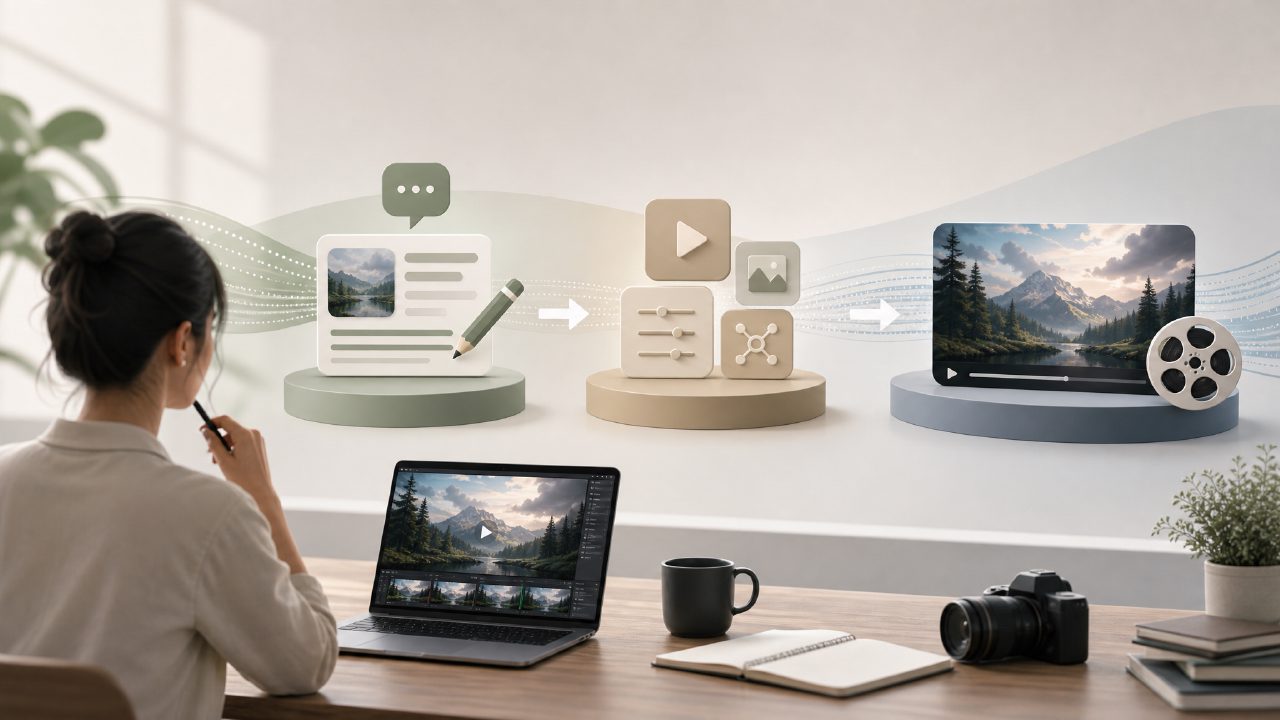
Want to make AI videos but don't know where to start? Too many tools, complex parameters, and results that may not be controllable. If you're new to this field, the most practical approach is to first understand three things: how to write prompts, how to choose tools, and how to put the generated results to use. The key points below will help you avoid the most roundabout paths.
To get started with AI video generation, first clarify these things
- Understanding prompts is the fundamental skill
Whether you use sora, Runway, or getsora2, the core is your text instruction. Don't jump straight into pursuing "cinematic feel"; first learn to describe the subject, action, scene, and atmosphere. For example, "a cat wearing glasses reading a book by the window in a café, with sunlight coming in from the left" is a hundred times more reliable than "a cute cat." The more specific your prompt, the less likely it is to go haywire. - Know how to adjust motion control
The biggest fear in AI videos is objects moving erratically and edges flickering. Many platforms (including getsora2) let you adjust motion intensity, camera movement direction, or frame rate. Based on testing, setting motion intensity between 0.3–0.5 significantly improves frame stability compared to maxing it out. If you're shooting a product demo, it's better to have slight movement than to let it "wreak havoc." - Practice with short clips first, then combine them into a story
A common beginner mistake is to directly request a 10-second long take. Currently, most models are not very stable with long sequences. It's recommended to generate 2–4 second small clips first, then use tools like getsora2 for splicing and transitions—this yields far fewer wasted clips than a single output. - Don't overlook the issue of separating background from subject
AI often sticks the subject and background together. For example, if you say "a person walking in the rain," it might blur both raindrops and the person together. A good practice is to add "with clear boundaries from the background" in the prompt, or manually handle it later with masks. The editing tools in getsora2 include a subject cutout feature, which comes in handy here. - Always check details before final delivery
Extra fingers, flickering subtitles, drifting eyes—these are common issues in AI videos. Don't rush to deliver; scan frame by frame. Now getsora2 can directly output versions with anti-flicker optimization, but if the source material has major issues, post-processing fixes can be even more time-consuming. So when generating, include "detail consistency" in the prompt (e.g., "correct fingers, steady gaze") to save a lot of trouble. - The final trade-off: efficiency vs. controllability
If you prioritize speed, just use preset models to run quickly—both sora and getsora2 can produce results in one go. But if you have precise requirements for composition, color, and motion trajectory, you'll have to accept multiple rounds of fine-tuning—adjusting prompts, changing seeds, tweaking parameters, or even generating an image first and then turning it into a video. No tool is omnipotent; only the workflow that best suits the current task.
To be honest, there is no shortage of teaching resources for AI video generation now; what's missing is content that removes the hype and clearly explains the real gaps. Following the six points above for one round is more useful than reading ten generic tutorials.
Comments
Leave a Comment