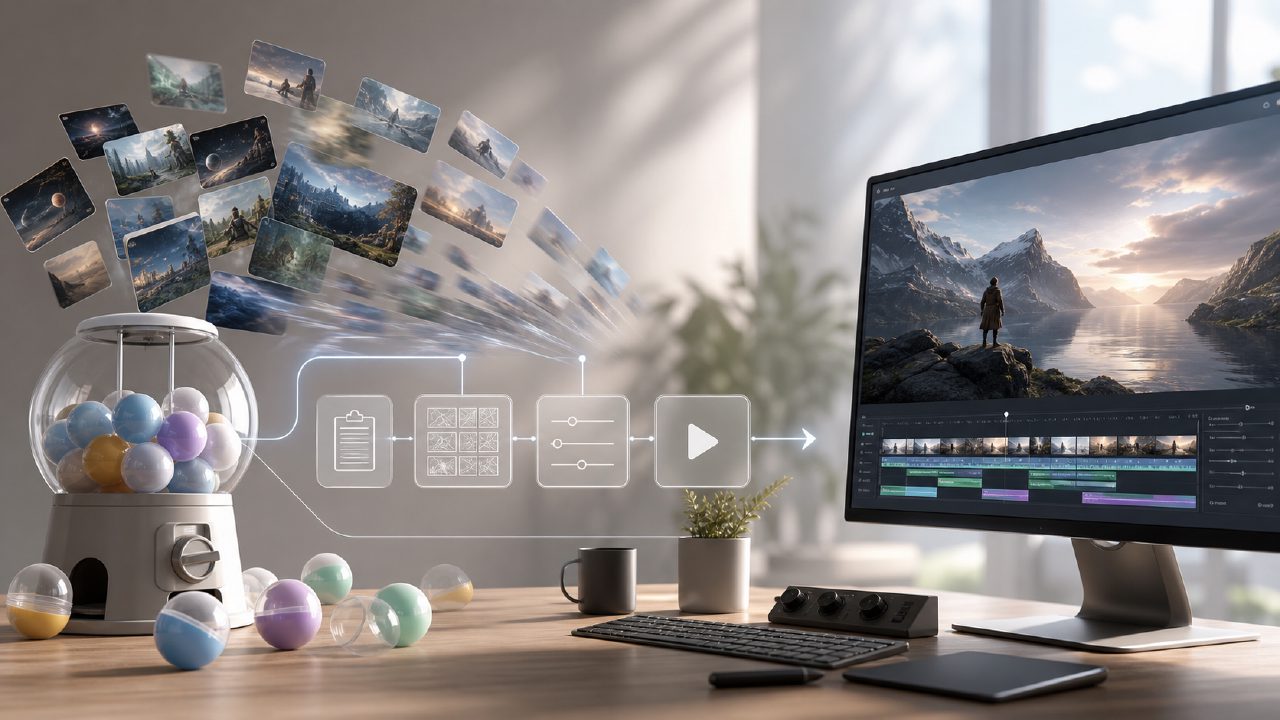
Lately, I've been testing various AI video tools, looking for one that truly assists in producing final footage rather than just showing off. I've tried some text-to-video products before — results were hit or miss, and there was almost no sense of control. Then someone recommended getsora2 to me, saying the platform shares the same underlying technology as sora, but has been shaped into a more practical workflow.
Honestly, my first impression was skepticism. These "professional-grade AI video processing platforms" often fall into two extremes: either too simple like a toy, or overloaded with parameters that scare you away. But after trying it out, I found it strikes a reasonably balanced middle ground.
First Impressions: From "card-drawing" to "parameter tuning"
The first thing I tested was the most basic text-to-video feature. The prompt I entered was "city rooftop at dusk, neon lights, camera slowly pushing in." Most tools would produce a 30-second slow-motion animation, but details often break. The first version of getsora2 also had flaws — the character's fingers occasionally glitched — but the background consistency was surprisingly good. What really caught me off guard was its "fine-tuning" feature: you can manually specify which frames to keep and which segments need to be recalculated, rather than regenerating everything from scratch. This design made me, a control freak, much more comfortable.
What turned out to be even more practical was its image-to-video workflow. I threw in a still photo I had taken, selected "simulated camera motion," and it automatically generated three camera shot options: push-in, orbit, and time-lapse. The orbit effect was the best, with almost seamless light transitions; the only trade-off was a rendering time roughly double that of text-to-video.
Two Real Tests I Ran
The first test was adding a background animation to one of my short videos. The original footage had a green screen, and I wanted to replace the solid-color background with flowing lava. getsora2's "AI frame interpolation + style transfer" feature let me upload the green screen video directly, input a description of the target scene, and it automatically performed keying and background filling. The upside was that I didn't need to open After Effects for manual tracking; the downside was that if the subject's movement was too large, the edges would jitter. I tried three times, and the third time using the "high precision" mode finally satisfied me — but the time cost doubled.
The second test was creating a product showcase animation. I provided three product images from different angles and asked for a 360-degree rotating video. The result was impressive: the object shape was well preserved, and the rotation speed was even. However, the ground reflection in the background was a bit blurry, and I had to manually lower the "realism" weight to avoid weird light spots.
Use Cases and Drawbacks
After using it for a few days, my assessment is that this tool is best suited for two types of people. One is small teams who make short videos but don't want to learn complex post-production; the other is creators who already use traditional software but want to speed up the early stages. Its strengths and weaknesses are clear:
- Strengths: Stronger editing control over details than most similar products, especially with local recalculation and frame-level adjustments; generation quality on par with the sora generation, but leaning more toward "usable" than "jaw-dropping."
- Drawbacks: Long rendering times, especially in high-quality mode; occasional semantic misunderstandings (for example, I said "rain" and it interpreted it as "water droplets" rather than the effect of falling rain). Also, stability for longer clips (over 30 seconds) is insufficient — the longer the action segment, the more likely logical breaks occur.
The label AI filmmaker is too broad these days. getsora2 can't do everything, but it at least points toward a direction of "controllable generation." If you're willing to spend a little time tweaking parameters, it can output results very close to a finished product; if you just want a one-click final output, you'll likely be disappointed.
Lastly, the platform supports exporting at multiple resolutions and preserves project files — a big plus for later edits. For now, it's not a perfect endgame tool, but as a mid-term transitional solution, it's worth a try.
Comments
Leave a Comment