Why Would You Look for a Sora AI Tutorial?
You may have just seen someone else's video generated with Sora, with footage so smooth it doesn't look like AI did it—especially the natural lighting and object motion, which is a completely different ball game from Midjourney's static-to-dynamic approach. But when you open getsora2 yourself, you find that it's not simply a matter of typing a prompt and getting a finished clip. How to write the prompt, how to adjust the length, how much motion intensity is too much before it breaks—you have to experiment with all of that.
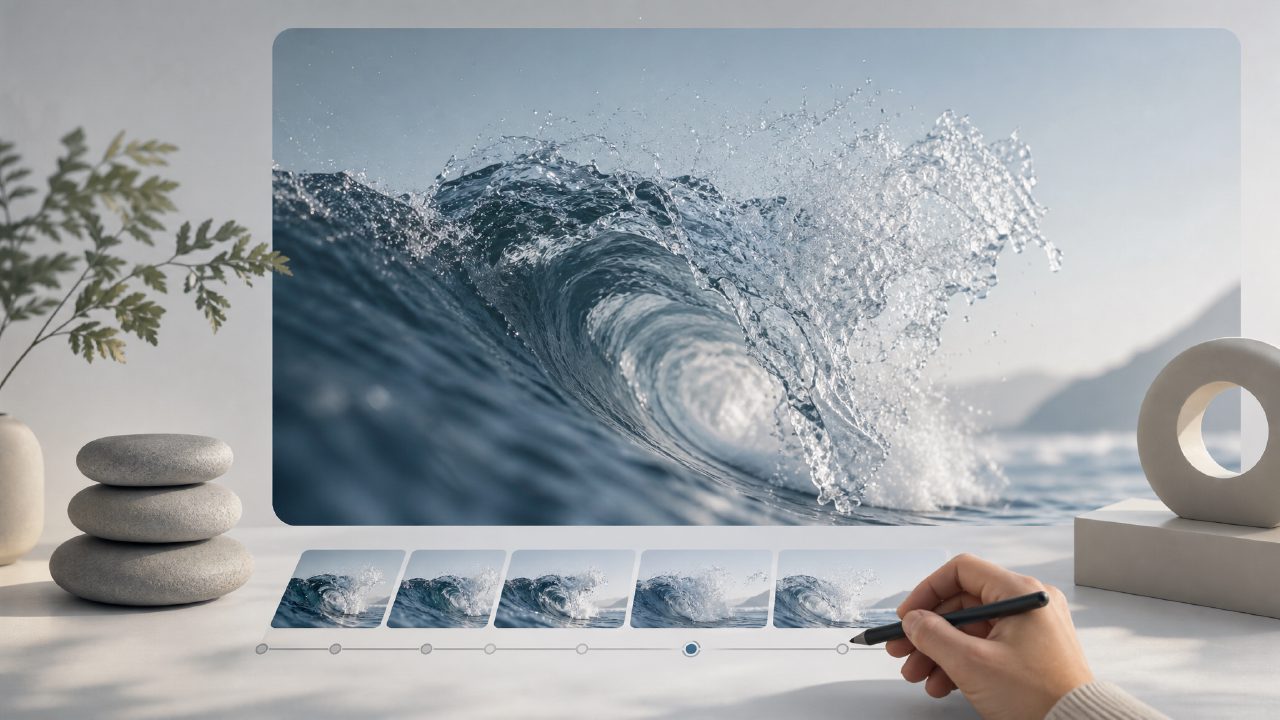
I was recently working on a short "one-minute healing" video for Xiaohongshu and needed a slow-motion shot of waves crashing on rocks. I ran a few rounds with getsora2 and recorded the operations and pitfalls along the way. Here's the full walkthrough.
Scenario: Generating a Slow-Motion Clip of "Waves Crashing on Rocks"
The goal was clear: about 10 seconds, high frame rate, the water needed to look transparent, the rock texture had to be sharp, and no warping or distortion. Sounds simple, but the first two attempts produced waves that jiggled like jelly.
Step 1: Writing the Prompt
In the getsora2 input box, I wrote:
Close-up of ocean waves crashing on jagged black rocks, slow motion, water droplets catching sunlight, cinematic depth of field, 4K, realistic water physics.
Two details to note: first, I added "realistic water physics"; Sora understands physical collisions better than other models, but if you don't specify it, it will lean toward a stylized look. Second, I used "slow motion" rather than "slow"; Sora responds more consistently to adjectives than to abstract descriptions.
Step 2: Setting Parameters
In the getsora2 interface, you can adjust resolution (1080p is sufficient; 4K is too slow and you won't notice the difference on a phone), duration (10 seconds), and motion intensity (default is 5; I pushed it to 7 to give the water more impact). The tradeoff here is: the higher the motion intensity, the more likely the edges of objects will flicker, especially at the boundary between water foam and rocks. So I first ran a version at intensity 5 for comparison.
Step 3: Generation and Review
The first version (intensity 5) was stable, but the waves lacked power. The second version (intensity 7) looked good for the first second, but by the third second the edges of the rocks started showing pixelated jitter. The solution was to go back to the prompt and add "sharp edges on rocks, minimal motion blur", then run it again at intensity 7. The third result was basically usable, with only a small area of water deformation in the bottom right corner—but in a 10-second slow-motion shot, that area appears for less than a second, so it could be cut out.
Common Pitfalls to Watch Out For in Actual Use
Sora isn't perfect. Unlike trained video models, each generation on getsora2 is independent, so you can't expect the same prompt to produce the same clip every time. When working on continuous shots (e.g., a longer narrative), it's best to break the scene into 3–4 segments, generate them separately, and then stitch them together with editing software—rather than trying to cram "waves, sunset, seagulls flying by" into a single prompt. The latter will likely cause the subject to get confused—the seagull might sprout out of the rock.
Another point many people overlook: Sora understands text well, but it doesn't understand negative prompts. Writing "no distortion" in your prompt may actually produce the opposite effect. The correct approach is to use natural language to describe the visual features you want, rather than forbidding what you don't want.
If you usually work on product demo videos (e.g., shoes, phones), Sora's physics simulation works brilliantly for rigid bodies (solid objects), but it tends to struggle with liquids (e.g., pouring water, beverages)—the particles of water droplets sometimes decouple from the model's collision. In such cases, it's recommended to lower the motion intensity to 3–4, or to use real footage for compositing.
So, Is This Tutorial Actually Useful?
Going back to that Xiaohongshu video, I spent about 40 minutes (including retries) on getsora2 to produce three usable segments, which I then edited into a final 15-second clip. Honestly, it saved about two hours compared to shooting with real footage, but it's not as magical as "one-click generation." If you approach it expecting a fully automatic video production tool, you'll be disappointed; but if you treat it as a step in generating supplementary素材, then the efficiency improvement of sora is noticeable.
Next time before trying a new scene, I recommend running a very brief prompt first to see getsora2's basic performance for that kind of object, and then add details afterward. That will save you a lot of wasted attempts.
Comments
Leave a Comment